Objects & props
Objects are the scenery of your desktop: beds, plants, bookcases, campfires, lamps. Unlike pets, they don’t walk around or run a behavior graph, they sit where you put them and can play a looping animation. The demo ships 27 of them, and you can make your own in the Object Editor.
Using the objects that ship with the app
Section titled “Using the objects that ship with the app”Objects live in the Library’s Objects tab and work just like pets:
- Toggle Live to place one on your desktop.
- Drag it anywhere; if it goes off-screen, use Reset position in the detail panel to bring it back.
- Set its Scale, and its Back / Front layer, which orders it relative to other objects. Whether a pet appears in front of or behind an object is set by the object’s pet layer in the Object Editor (see States and layers below).
- Right-click a live object for a quick menu without opening the Library: Hide this Object, Bring to Front, Send to Back, or Reset Position. Works on macOS and Windows.
Making your own object
Section titled “Making your own object”From the Library (Custom source) click New Object and give it a name; the Object Editor opens. You can also Clone an existing object (yours or a default) and edit the copy.
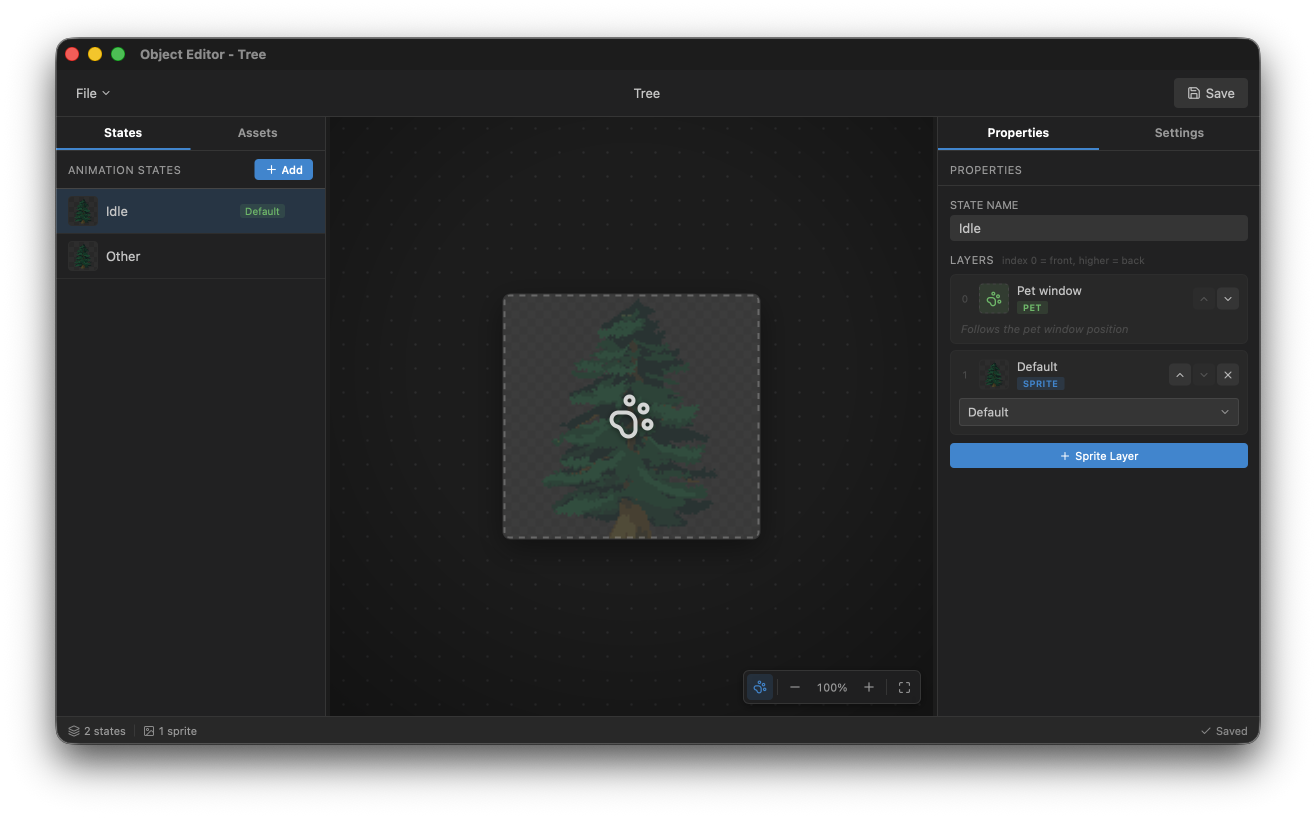
The editor is organized into panels:
- States (left). The object’s animation states.
- Assets (left). Import and manage the object’s sprites (opens the same Importer you use for pets).
- Properties / Settings (right). Edit the selected sprite, and the object’s metadata: icon, name, author, scale, description, and tags.
Save with ⌘S / Ctrl+S. Saved custom objects appear under Custom in the Library’s Objects tab.
States and layers
Section titled “States and layers”-
States are named animations for the object, for example an “on” and an “off” look. Add, remove, and mark one as the Default (it carries a Default badge). A new object starts with one state; in this demo you work with one selected state at a time.
-
Layers build up a state’s picture from back to front. Each state has an ordered list of layers where index 0 is the front and higher numbers are further back. A layer is either:
- a Sprite layer: a piece of artwork you assign, or
- the Pet layer: a placeholder that “follows the pet window position,” so you can compose art in front of and behind where a pet stands.
A valid state requires exactly one Pet layer.
What’s not here yet
Section titled “What’s not here yet”Deeper pet-to-object interaction (anchor points where a pet walks over and docks onto an object, and nodes that send a pet to a specific object) is part of the larger vision but not in this demo. Today, objects are scenery you place and layer; pets don’t automatically interact with them.