The system tray & everyday controls
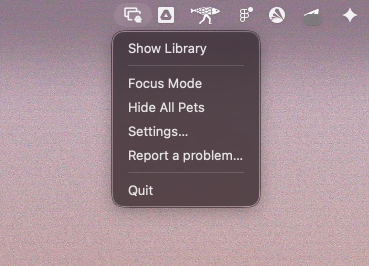
Screen Pet Engine lives in your menu bar (macOS, top-right) or system tray / notification area (Windows, bottom-right). Even when every window is closed, the app keeps running from here, and your pets keep going. Click the icon to open its menu.
The tray menu
Section titled “The tray menu”| Item | What it does |
|---|---|
| Show Library | Opens (or brings forward) the main Library window. |
| Focus Mode | A checkmark toggle. Makes pets and objects click-through so your clicks reach whatever is behind them, which is great when you are working. While on, pets cannot be dragged. See below. |
| Hide All Pets | A checkmark toggle. Instantly hides every live pet and object without turning them off; toggle again to bring them all back. |
| Settings… | Opens the preferences window. |
| Report a problem… | Opens Settings straight to the Diagnostics pane so you can export logs for a bug report. |
| Quit | Exits the app completely (pets included). |
Hide All Pets
Section titled “Hide All Pets”When you need a clean screen (a screenshot, a screen-share, a moment of focus), Hide All Pets gets everything out of sight at once. It does not turn your pets off or forget your setup; it just hides them. Toggle it again and they all come back exactly as they were. The same switch is also in Settings → General → Hide All Pets. (If you turn a pet Live while Hide All is on, the Library reminds you that it is being kept hidden by the master switch.)
Pets also hide automatically when an app goes fullscreen (a game, a video, a presentation) and reappear when you leave fullscreen. You can turn that automatic behavior off in Settings → General → Hide during fullscreen apps.
The Hide All Pets checkmark reflects only the manual switch. The automatic fullscreen hide works independently and does not tick the box.
Focus Mode
Section titled “Focus Mode”Focus Mode makes your pets and objects click-through: your mouse clicks pass straight through them to the window underneath, so a pet standing over a button never gets in your way. The trade-off is that you cannot grab or drag pets while Focus Mode is on.
The two platforms handle the “get out of the way” effect a little differently, and you can tune it in Settings → Focus Mode:
- macOS. A pet fades to near-transparent when your cursor is over it (adjust how faint with the Ghost Opacity slider), then returns to full opacity when you move away.
- Windows. A pet hides while your cursor is over it (a visible window cannot be truly click-through on Windows), then reappears once you move on.
You can toggle Focus Mode from the tray menu at any time, or from its Settings pane.
Right-click a pet or object
Section titled “Right-click a pet or object”You can control a live pet or object directly on your desktop, without opening the Library: right-click the pet or object itself to open a small menu.
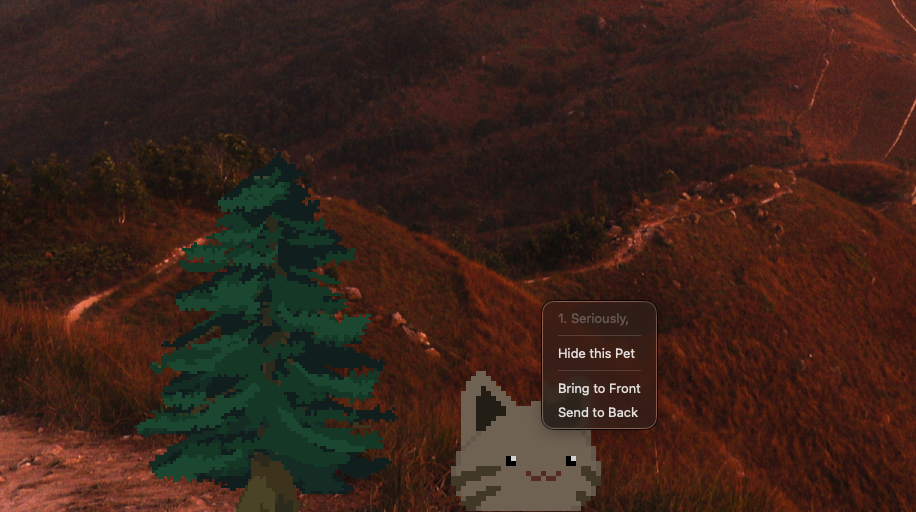
The menu is headed by the item’s name, and offers:
- Hide this Pet / Hide this Object. Turns just that one off (the same as its Library Live toggle).
- Bring to Front / Send to Back. Re-orders it against other live items of the same type (the same as the Back / Front control in the Library).
- Reset Position (objects only).* Snaps an object that has wandered off-screen back into view. Pets don’t need this, they walk and fall back on their own.
It works the same on macOS and Windows. In Focus Mode, pets are click-through, so right-click passes through them; use the Library’s detail panel instead.
Closing windows vs. quitting
Section titled “Closing windows vs. quitting”Closing a window (even the Library) does not quit the app or stop your pets. The app stays alive in the tray so your pets keep running with the least possible overhead. To actually exit, choose Quit from the tray menu.