Install & first launch
Screen Pet Engine downloads as a regular desktop app. Because this is an early demo, it is not code-signed or notarized yet. That is normal for a demo, and the app is safe, but your operating system will show a one-time security prompt the first time you open it. This page walks through it for both platforms.
Get the demo
Section titled “Get the demo”itch.io (available now)
Section titled “itch.io (available now)”The demo is on itch.io. The easiest way to get it is the itch.io app (the free desktop client): it downloads and installs Screen Pet Engine, keeps it updated, and launches it without the macOS security prompt below. Install the itch app, search for Screen Pet Engine, and click Install.
Prefer a browser download? You can download the file straight from the itch page instead. You will then need to clear the one-time security prompt yourself: see the macOS or Windows first-open steps below.
Steam (available now)
Section titled “Steam (available now)”The demo is on Steam. Open the store page and click Download Demo to install it through the Steam client. Steam keeps it updated and launches it like any other Steam title, so you can skip the first-open security steps below. You can also wishlist and follow the full game from the same page.
Install
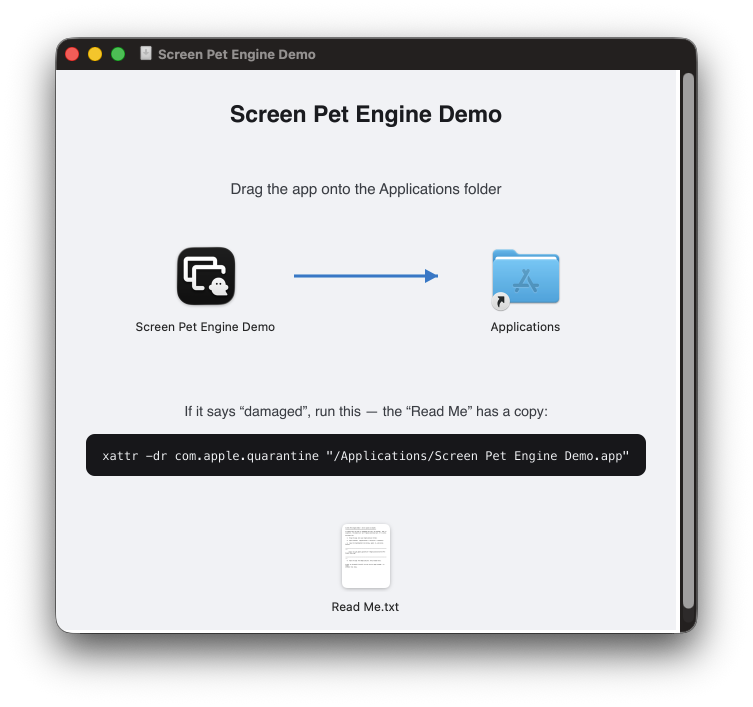
Section titled “Install”- Download the macOS build (a
.dmgdisk image, or a.appinside a zip). - If it is a
.dmg, double-click it and drag “Screen Pet Engine Demo” into your Applications folder. - Open Applications and find Screen Pet Engine Demo.
Get past Gatekeeper (first open)
Section titled “Get past Gatekeeper (first open)”Because the app is not notarized, double-clicking it the first time may show “Screen Pet Engine Demo can’t be opened because Apple cannot check it for malicious software” (or, on newer macOS, “…is damaged and can’t be opened.”). This is expected. To open it anyway:
- Right-click (or Control-click) the app → Open → in the dialog, click Open again. macOS remembers this choice, so you only do it once.
If macOS says the app is “damaged” and will not give you an Open button, the download picked up a quarantine flag. Clear it from Terminal:
xattr -dr com.apple.quarantine "/Applications/Screen Pet Engine Demo.app"Then open the app normally.
Newer macOS versions sometimes hide the right-click Open option. If so, go to System Settings → Privacy & Security, scroll to the bottom, and click Open Anyway next to the Screen Pet Engine message.
Windows
Section titled “Windows”Install
Section titled “Install”- Download the Windows installer (
.exe). - Run it. It installs for the current user (no admin rights needed) and bundles the WebView2 runtime it needs, so there is nothing else to install.
Get past SmartScreen (first open)
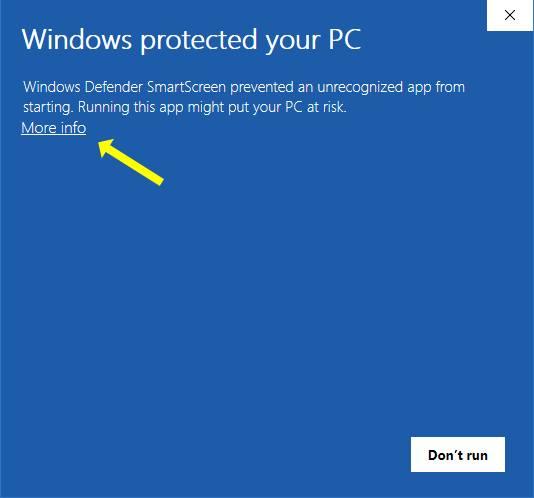
Section titled “Get past SmartScreen (first open)”Because the installer is not signed, Microsoft Defender SmartScreen may show “Windows protected your PC.” This is expected for an unsigned demo. To continue:
- Click More info, then Run anyway.
First launch
Section titled “First launch”When the app is running you will see its icon in the menu bar (macOS, top-right) or the system tray / notification area (Windows, bottom-right). The app lives there. See The system tray & everyday controls.
If you would like the app to start automatically when you log in, you can turn that on later in Settings → General → Launch at login.